Why an entire column is different
A helper range that works for B2 → C2 is not automatically independent for B3 → C3. Every row needs child options based on that row’s parent value. Copying one absolute helper reference down the column makes every row follow the same parent.
Structure the source once
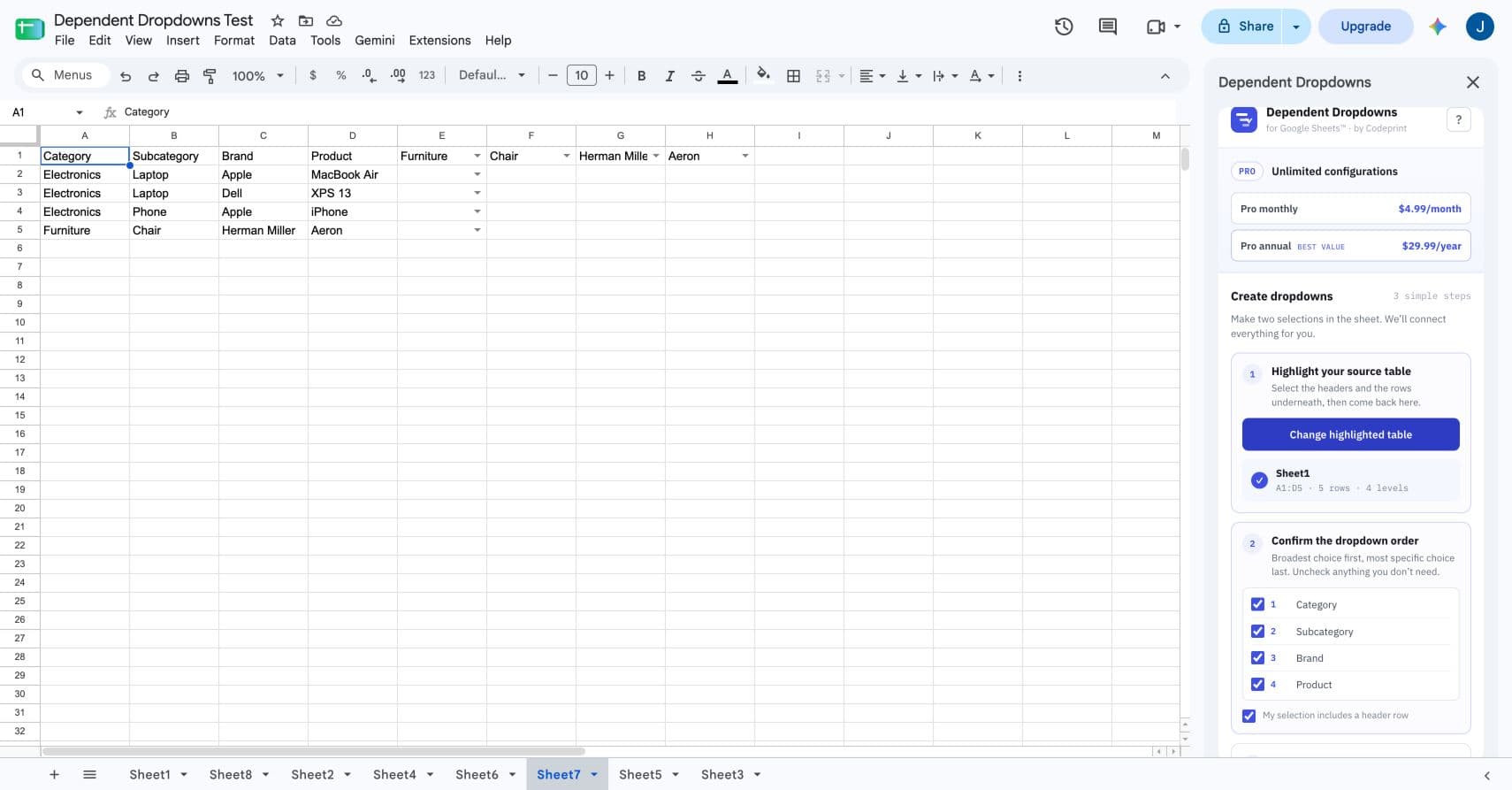
Keep the hierarchy in a flat source table. Repeated values are expected and are deduplicated when dropdown options are built.
| Category | Subcategory | Brand | Product |
|---|---|---|---|
| Electronics | Laptop | Apple | MacBook Air |
| Electronics | Laptop | Dell | XPS 13 |
| Electronics | Phone | Apple | iPhone |
| Furniture | Chair | Herman Miller | Aeron |
Build the Repeating table
- Highlight the source table and confirm the hierarchy.
- Choose Repeating table.
- Select the first output cell to cover the remaining sheet rows, or select the exact row range you want to cover.
- Press Use selected starting cell, review the destination summary, and create the dropdowns.
Know the practical limits
- A destination selection can cover up to 5,000 rows per configuration.
- Source ranges are bounded to populated data and up to 10,000 source rows.
- The add-on batches destination reads and writes validation one column at a time.
- Invalid child values are cleared only after replacement validation rules are installed.
Those rules protect performance and reduce the chance of a partially updated table if Google Apps Script stops an execution.
If one row behaves differently
- Confirm the parent value exactly matches the source table.
- Check whether a paste operation removed the validation rule.
- Open the sidebar and use Repair if the configuration reports Needs repair.
- Confirm that the row is inside the saved destination range.